
PHYSICAL DESIGN GUIDE
Floorplanning the design
Target Utilization Display (TU)
TU metric estimates how much of a module's area will be occupied by standard cells and hard macros. It does not account for placement blockages or routing constraints. Target Utilization (TU%) is specified by the user. When defining a floorplan or module constraints, the user sets a target utilization value to estimate how much of the area should be occupied by standard cells and hard macros. This percentage helps in balancing space usage while leaving enough room for routing and design adjustments. The initial TU values are specified during design import.
Calculation: TU= (Standard Cell Area + Hard Macro Area)/(Module area)
Usage and Constraints: TU values guide the customization of module shapes in the floorplan. When reshaping modules with the same area, they retain their TU values. The position of the module guide is a placement constraint, and the final definition of the module is determined by several factors, where the highest priority is given to connectivity between modules, while other constraints like preplaced blocks and routing blockages are considered but with lower priority.
A stronger constraint can be used to keep modules SH19 and SH7 close together by using the Group Instances form, and an even stronger constraint can be applied by saving the regrouped netlist.

Effective Utilization Display (EU)
EU represents the actual utilization of cells and hard macros within fences or regions, considering placement or routing blockages, partition cuts, and other floorplan constraints. It provides a more accurate measure of utilization within specific areas of the design.
- EU values are updated manually by clicking the Query Area Density toolbar widget.
- Usage: EU values should be updated before running placement to ensure accurate utilization.
- If EU exceeds 100%, the fence or region is converted to a guide.
- Since calculating EU values can be time-consuming for large designs, it is important to update them before placement.
Calculating Density
These calculations help specify the floorplan by determining the core and module sizes based on total density or standard cell density. The size of the core is smaller once floorplan is specified using Cell Utilization.
Core Utilization
Determines the initial size of the core area and module guides.
Higher core utilization means a smaller core size, while lower core utilization results in a larger core size with more whitespace.
Cell Utilization
Determines how densely objects can be packed by weighing standard cell density separately from hard macro density.
A lower cell utilization value results in more whitespace, reducing congestion but increasing die area. Higher cell utilization makes the design more compact but may lead to congestion issues.
Standard Row Spacing
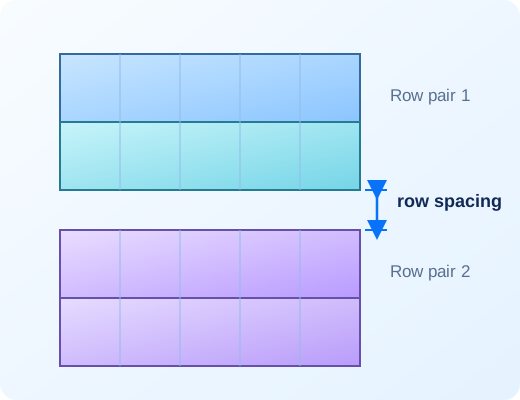
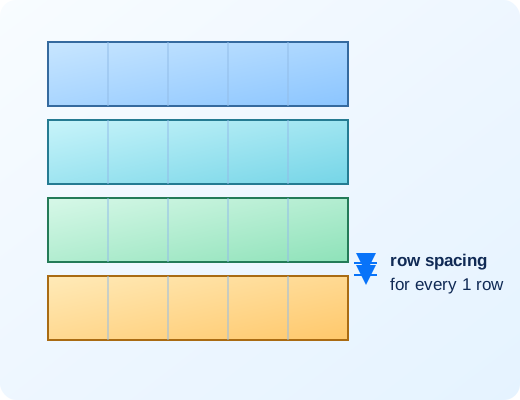
The rows can be configured using the setFPlanRowSpacingAndType command, the createRow command, or the options from the Standard Cells Rows panel of the Specify Floorplan form.
The following are the row configurations supported:
- Example 1: Bottom R0 and flip/abut:
createRow -limitInCore -site CORE -spacing 5.4 - Example 2: Bottom R0:
createRow -limitInCore –noAbut –noFlip -site CORE -spacing 5.4
By default, spaces are inserted between pairs of rows. When -noAbut is enabled spaces are inserted between every row as well.

Grouping Instances
Instance groups are used to create a new logical hierarchy unit, and all power domains associated with an instance group are assigned a constraint fence. You can create a new instance group using the createInstGroup command or the Group Instances form, even outside the core boundary.
A constraint fence ensures that only its own standard cells are placed inside, and no other cells are allowed within.
Cadence recommends that physical-logical coherence for constraint fences must always be preserved. This requirement applies not only to instance groups but also to all hinsts and instance groups having constraint fences.
Simply put, if fence A is logically part of fence B, then fence A must be physically placed inside fence B to maintain coherence.
When a new instance group is created, its hierarchy is formed at the common point of the modules and submodules added to that group. For example, if submodules B and F are added to a new group called group_A, the hierarchy is adjusted starting from their common connection point.
To add an instance to an existing instance group, use the addInstToInstGroup command or select the module(s), then go to Floorplan → Instance Group and choose the group name.
To delete an instance from an instance group, use the deleteInstFromInstGroup command or select the module(s) in Tools → Design Browser, and click the Delete Group/Group Member icon.

Defining the Bounding Box
setObjFPlanBox – Innovus command used in floorplan to define a bounding box of a specified object.
setObjFPlanBoxList – Innovus command used to define rectilinear shape of an object, which is comprised of two or more boxes.
Eg 1
setObjFPlanBox Module A 142.0 120.0 605.0 545.0Eg 2
setObjFPlanBoxList Module B 356.46 532.6 692.50 720.7 483.46 720.7 692.50 934.67The rectilinear boundary is made up of two bounding boxes: (356.46 532.6 692.50 720.7) and (483.46 720.7 692.50 934.67)


Adding Logical Hierarchy Without Creating Additional Hierarchy
Innovus software enables to add logical hierarchy without creating additional hierarchy.
createInstGroup /TTT -isPhyHier
addInstToInstGroup /TTT U5
addInstToInstGroup /TTT U7
createLogicHierarchy -commit -cell aa -newHinst TTT -objects U5 U7
The leading slash character (/) in /TTT is required for the software to create a temporary group named /TTT.
Logical Hierarchy Manipulation:
- To move an instance to a new top module named TOP101, the following are the Innovus commands:
createInstGroup TOP101 -isPhyHier
addInstToInstGroup TOP101 PMEMDSP/PRAMDLD/U10
addInstToInstGroup TOP101 PMEMDSP/PRAMDLD/U11
createLogicHierarchy -commit -cell aa -newHinst TOP101 -objects PMEMDSP/PRAMDLD/U10 PMEMDSP/PRAMDLD/U11- To move an instance to an existing module named DRAMDSP/DRAMDLD,
createInstGroup /DRAMDSP/DRAMDLD -isPhyHier
addInstToInstGroup /DRAMDSP/DRAMDLD DIFTOP/DIF/U13
addInstToInstGroup /DRAMDSP/DRAMDLD DIFTOP/DIF/U14
createLogicHierarchy -commit -cell aa -newHinst /DRAMDSP/DRAMDLD -objects DIFTOP/DIF/U13 DIFTOP/DIF/U14